Tutorials
How to use tg_api_parser
Overview
tg_api_parser is a utility for downloading messages and media files from Telegram chats or channels using the Pyrogram library via Telegram's API. It saves messages and service events (like users joining/leaving) into convenient CSV files and has an option to download all media files into a separate folder.
Telegram allows you to download all messages from public channels and chats, as well as from private chats that you have access to. The data can be manually downloaded from each chat in JSON format, but downloading via API provides more detailed data.
Telegram API Setup
To use the Telegram API for downloading messages, you need to obtain API credentials from Telegram and identify the unique ID of each chat or channel you want to access. This section will guide you through both processes.
Getting API Credentials
API access requires authentication credentials that you can obtain from Telegram's developer portal. These credentials consist of an API ID and API Hash that authenticate your application. Don't be confused by the "application" terminology - you're simply getting access credentials to read data from Telegram, not creating a commercial app.
1.Visit Telegram API website: Go to https://my.telegram.org/apps
2.Login with your Telegram phone number
3.Create new application:
App title: My Telegram Parser (or any name you prefer)
Short name: parser (any short identifier)
Platform: Desktop
other fields could be left empty
4.Copy your credentials:
API ID (numeric): 1234567
API Hash (alphanumeric string): abc123def456...
Finding Chat and Channel IDs
Every Telegram chat, group, and channel has a unique identifier that you need to specify before downloading. Here are several methods to find these IDs.
Method 1: Using Telegram Bots
For any chat or channel:
1.Forward any message from the target chat to @userinfobot
2.The bot will reply with detailed information including the chat ID
For channels you administrate:
1.Add @raw_data_bot to your channel as an admin
2.Send any message in the channel
3.The bot will display the channel ID and other technical details
Method 2: Using Telegram Web Interface
Access the web interface:
1.Login to https://web.telegram.org
2.Navigate to the chat or channel you want to parse
3.Examine the URL in your browser's address bar
Extract ID from URL:
Public channels/groups:
URL format: https://web.telegram.org/k/#@channel_username
Use: "@channel_username" (include the @ symbol in quotes)
Private groups/supergroups:
URL format: https://web.telegram.org/k/#-1234567890
Use: -1001234567890 (add -100 prefix to the number shown)
Personal/private chats:
URL format: https://web.telegram.org/k/#1234567890
Use: 1234567890 (positive number as shown)
Installation
Prerequisites
Python 3.8 or higher
Git (for cloning the repository)
Overview
tg_api_parser is a utility for downloading messages and media files from Telegram chats or channels using the Pyrogram library via Telegram's API. It saves messages and service events (like users joining/leaving) into convenient CSV files and has an option to download all media files into a separate folder.
Telegram allows you to download all messages from public channels and chats, as well as from private chats that you have access to. The data can be manually downloaded from each chat in JSON format, but downloading via API provides more detailed data.
Telegram API Setup
To use the Telegram API for downloading messages, you need to obtain API credentials from Telegram and identify the unique ID of each chat or channel you want to access. This section will guide you through both processes.
Getting API Credentials
API access requires authentication credentials that you can obtain from Telegram's developer portal. These credentials consist of an API ID and API Hash that authenticate your application. Don't be confused by the "application" terminology - you're simply getting access credentials to read data from Telegram, not creating a commercial app.
1.Visit Telegram API website: Go to https://my.telegram.org/apps
2.Login with your Telegram phone number
3.Create new application:
App title: My Telegram Parser (or any name you prefer)
Short name: parser (any short identifier)
Platform: Desktop
other fields could be left empty
4.Copy your credentials:
API ID (numeric): 1234567
API Hash (alphanumeric string): abc123def456...
Finding Chat and Channel IDs
Every Telegram chat, group, and channel has a unique identifier that you need to specify before downloading. Here are several methods to find these IDs.
Method 1: Using Telegram Bots
For any chat or channel:
1.Forward any message from the target chat to @userinfobot
2.The bot will reply with detailed information including the chat ID
For channels you administrate:
1.Add @raw_data_bot to your channel as an admin
2.Send any message in the channel
3.The bot will display the channel ID and other technical details
Method 2: Using Telegram Web Interface
Access the web interface:
1.Login to https://web.telegram.org
2.Navigate to the chat or channel you want to parse
3.Examine the URL in your browser's address bar
Extract ID from URL:
Public channels/groups:
URL format: https://web.telegram.org/k/#@channel_username
Use: "@channel_username" (include the @ symbol in quotes)
Private groups/supergroups:
URL format: https://web.telegram.org/k/#-1234567890
Use: -1001234567890 (add -100 prefix to the number shown)
Personal/private chats:
URL format: https://web.telegram.org/k/#1234567890
Use: 1234567890 (positive number as shown)
Installation
Prerequisites
Python 3.8 or higher
Git (for cloning the repository)
Setup Steps
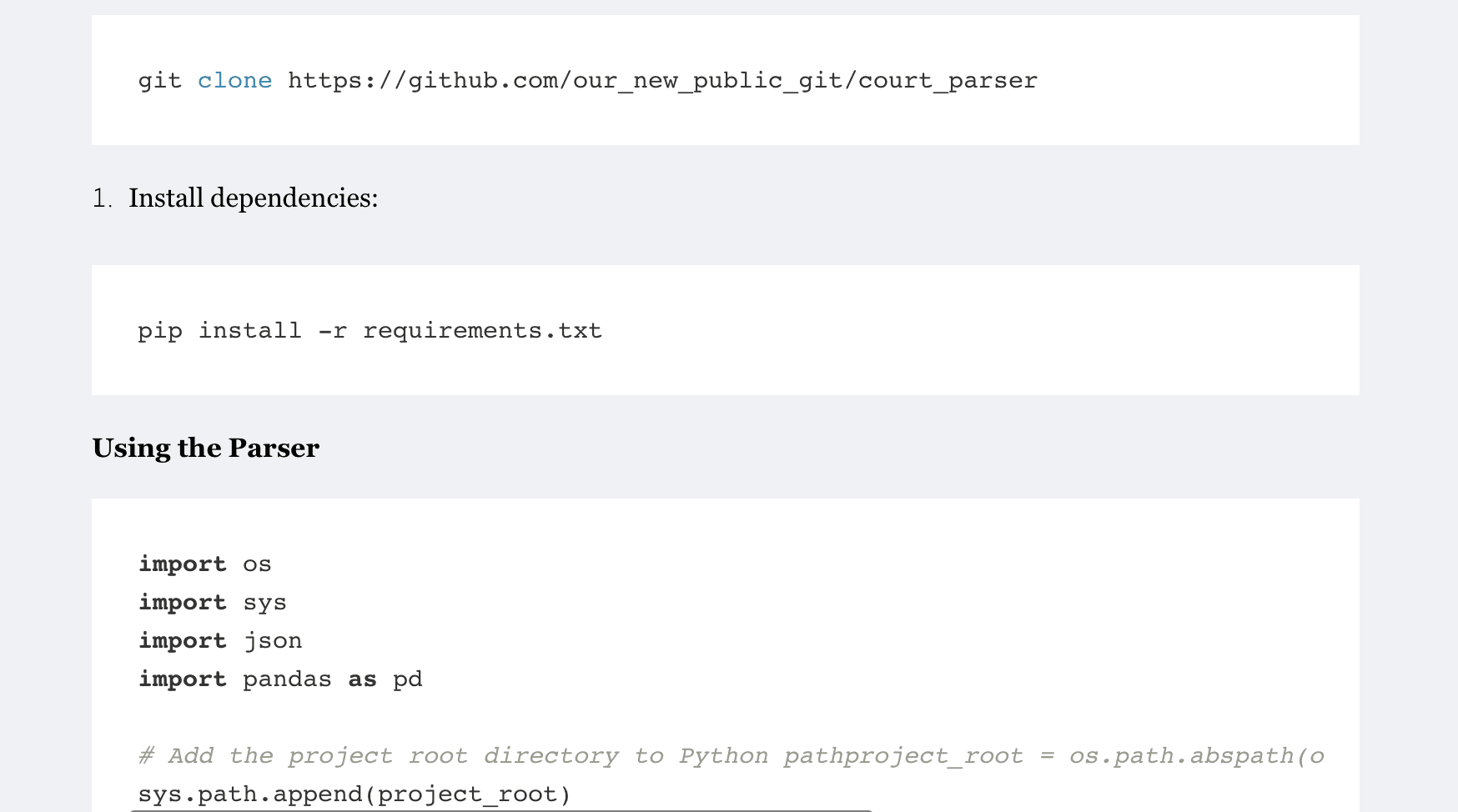
1.Clone the repository:
2.Install dependencies:
3.Create environment file: Create a file named .env in your project folder and store your credentials there:
Using the parser in Notebook
1.Initializing the Parser
Before you can start downloading data, you need to create a parser instance specifying chat to target and how to authenticate with Telegram's servers.
The parser needs a few key pieces of information: where to find your chat (chat_id), how to authenticate (api_id and api_hash), and where to save everything (output_path). If your credentials are stored in the .env file, you don't need to specify them explicitly. By default, all files will be stored in a folder named following this pattern: ./Chat_<chat_id>, but you can specify the output folder yourself.
2. Loading Data
Once your parser is initialized, data loading becomes a direct process. The load_data() method handles connecting to Telegram, accessing your target chat, and downloading the message history.
This method is smart about handling Telegram's protective measures. If the platform temporarily blocks your requests due to high volume (known as FloodWait), the parser waits for the specified time and tries again, up to 3 times by default. You can adjust this retry behavior if you're working with particularly large chats or unstable connections.
After load_data() completes, the parser.messages attribute contains a list of all downloaded messages as raw Pyrogram message objects. This data is immediately accessible:
For detailed information about the structure and available attributes of these message objects, see the Pyrogram Message documentation.
3. Extracting Structured Data
Raw Telegram message objects contain a wealth of information but aren't immediately suitable for analysis or export. The extract_messages() method transforms this raw data into structured, organized formats.
This method processes the raw messages stored in parser.messages and creates two separate collections:
parser.content_messages: Regular user messages converted to dictionaries with standardized keys like msg_id, posting_time, sender, media_type, content, etc.
parser.member_actions: Service messages (member joins, leaves, and other chat events) organized as structured data
The extraction process separates content from metadata, handles different message types uniformly, and prepares the data for CSV export or further analysis.
Note: You must call load_data() before using extract_messages().
4. Saving Data to CSV
Once you've extracted structured data, you can export it to CSV files for analysis, archival, or sharing. The save_chat() method handles the file creation and formatting automatically.
This method creates CSV files in the output directory that was specified when creating the parser (defaults to Chat_<chat_id> if not specified):
content_messages.csv: Always created - contains all regular messages with columns like msg_id, posting_time, sender, media_type, content, etc.
member_actions.csv: Created only when save_actions=True - contains service events like member joins/leaves
The method automatically creates the output directory if it doesn't exist and handles the CSV formatting to ensure proper encoding and structure for spreadsheet applications.
Parameters:
save_actions (optional): Set to True to also export service messages - defaults to False
Note: You must call extract_messages() before using save_chat().
5. Downloading Media Files
If your chat contains photos, videos, documents, or other media files, you can download them all at once using the get_files() method. By default parser downloads only the text data. This process runs after message extraction and updates your structured data with file paths.
This method processes all messages that contain media attachments and downloads them to a files/ subdirectory within your output folder. The process includes several important features:
Progress tracking: Shows download progress with a progress bar
Path integration: Updates each message's file field in content_messages with the relative path to its downloaded media
Error handling: Automatically retries failed downloads and handles rate limits
Consistent structure: Ensures all messages have a file field (set to None for text-only messages)
All media files are saved in the files/ subdirectory of your output folder, and their paths are recorded in the CSV export for easy reference.
Parameters:
retries (optional): Number of retry attempts for failed downloads - defaults to 3
Note: You must call extract_messages() before using get_files().
Command Line Interface
For quick data extraction tasks, you can use the built-in command-line interface without writing any Python code. The CLI provides all the core functionality through simple command-line arguments.
Basic Usage
Arguments
Required:
-c, --chat_id: Target chat/channel ID (e.g., -1001234567890 or @channel_name)
Optional:
-l, --limit: Maximum number of messages to fetch (default: all messages)
-f, --folder: Custom folder path for saving files and CSVs (default: Chat_<chat_id>)
-s, --save_actions: Include service messages (joins/leaves) in export
-m, --save_files: Download all media files to files/ subdirectory
CLI Workflow
The command-line interface follows this automated sequence:
1.Load Data: Connects to Telegram and downloads message history
2.Extract Messages: Converts raw data to structured format
3.Download Media (if -m flag used): Downloads all media files
4.Save to CSV: Exports structured data to CSV files
Examples
The CLI automatically handles the complete workflow and provides progress updates for each step.